Search6 min read
Search by photo: when shoppers can’t name what they want
By the BasketBooster team
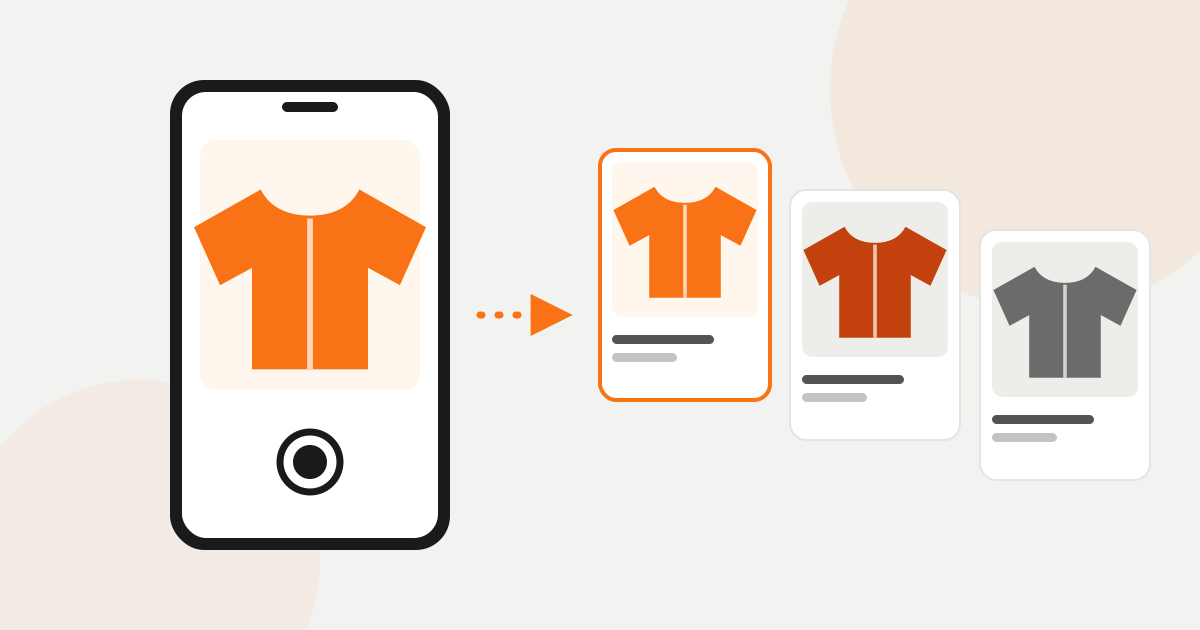
The short answer
Search by photo lets a shopper upload a picture, or take one with their phone, in place of typing words. The store compares the picture with its own product photos and shows the items that look most like it in shape, colour and style. Nobody has to tag products by hand, and the results come only from that store’s catalog.
A woman sees a jacket on someone at a tram stop. Short, olive green, big patch pockets. She takes a quick photo, and that evening she opens a store that sells jackets and types “green jacket”. She gets two hundred results. She tries “green jacket with pockets”, then “short khaki jacket women”, and after the third attempt she closes the site.
The store may well have had a jacket she would have bought. She had the photo in her pocket the whole time, and the store had nowhere to put it.
This happens most with things people buy with their eyes: clothes, shoes, furniture, lamps, decoration, jewellery, gifts. You know one when you see it, and you could not describe it to a search box if your life depended on it. What do you type for the lamp in your friend’s living room? “Lamp, sort of mushroom shaped, brass-ish”?
What is search by photo?
Search by photo (you will also see it called visual search) is a camera icon next to the search box in your store. The shopper gives the store a picture where they would normally give it words. The store looks at the picture and answers with the products from its own catalog that look most like it.
It sits beside ordinary text search and does not replace it. Someone who knows the product name will still type it. The photo is for the shopper who has run out of words.
What does the shopper actually do?
Very little, which is why people use it.
- They tap the camera icon in your search box.
- On a phone the camera opens straight away, so they can photograph the thing in front of them. They can also pick a picture they already have, such as a screenshot from social media. On a computer they upload a file.
- A moment later they see a row of your products, with the closest match first.
- They tap one and land on its product page, the same as after any other search.
How does the store know what “similar” means?
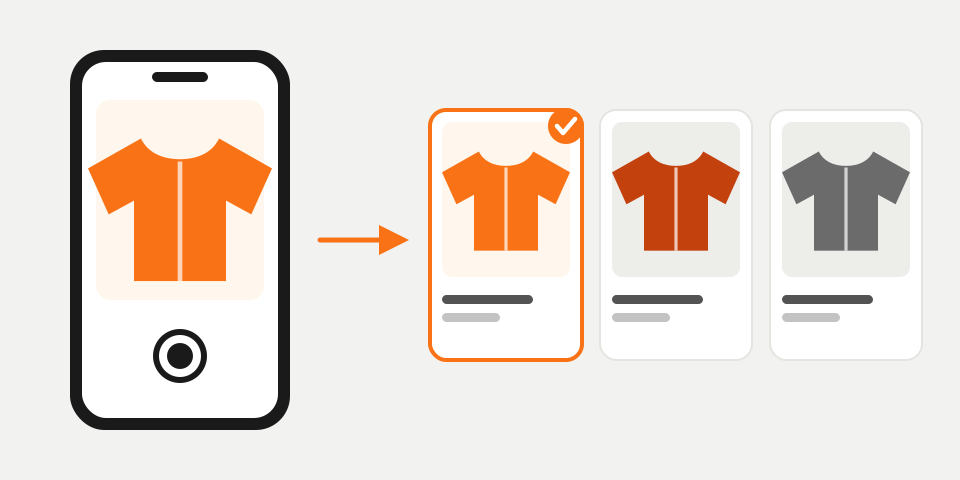
It compares pictures with pictures. When you switch search on, the software goes through the product photos you already have. When a shopper sends a photo, it looks for the products whose photos are closest in shape, colour and style, and puts them in that order.
You do not tag anything. Nobody on your team has to write “olive, cropped, patch pockets” against four thousand products. The software works from the photos, and it keeps up on its own when your catalog changes.
One limit you should know before you switch it on: it finds what looks similar in your catalog. It does not identify the exact branded jacket from the tram stop, and it never sends the shopper to another store to get it. If you sell something close, she sees it. If you don’t, she sees the nearest things you do have, and those may not be near enough.
Which stores gain from it, and which don’t?
The test is simple. Do your customers choose by looking, or by reading a specification?
If they choose by looking, it is worth having. That covers fashion and shoes, furniture and lighting, home decoration, jewellery, bags, gifts, toys, fabrics and wallpaper. In these stores the product name tells the shopper almost nothing (“Vase Nora 24 cm”) and the picture tells them everything.
If they choose by specification, you will get little out of it. A store that sells screws by size, printer cartridges by model number or books by title already has customers who know what to type. Two M6 bolts look identical in a photo, and one of them is the wrong length. Those stores get much more from good text search, which we cover in store search that understands shoppers.
Do I need to reshoot my product photos?
Probably not, but your photos do decide how good the matches are. The software can only compare the shopper’s picture with what you have shown it.
A clear photo of one product on a clean background gives the best results. Trouble starts when the main image is a lifestyle shot, like a model wearing the hat, the scarf and the coat all at once. The software cannot tell which of those you are selling. If your first image shows the product alone and well lit, you are fine. If it doesn’t, fix your twenty bestsellers first and see what changes.
Is this a nice extra, or will I lose sales without it?
No store goes under for lack of a camera icon. Here is the reasoning, and you can judge it for your own shop.
Your customers already search by photo. The apps on their phones have let them point a camera at something and ask “what is this?” for a while now, and for many people it is a habit. So when one of them arrives at your store with a picture, the photo is how they expect to ask.
A store that only accepts words makes that person do the translation, and most of us are bad at it. She came with a specific item in mind and was ready to pay for it, which makes her about the cheapest sale you will ever get. If the store down the road lets her show the photo and yours doesn’t, she will find a jacket there.
How often this happens depends on what you sell. A fashion or interiors store will see it used daily. A hardware store may never notice it.
How do I try it in my own store?
In BasketBooster, search by photo is part of search, together with typo-tolerant text search. It comes with the Growth plan and up, and there is nothing extra to unlock for the photo part. The pricing page lists what each plan includes.
Today it runs on WooCommerce and on custom-built stores, where you paste one line of code or flip a switch in the dashboard if BasketBooster is already installed. The Shopify app covers recommendations and forecasting, and search has not arrived there yet.
Every plan starts with a 30-day free trial with no credit card. That is enough time to switch it on, take a photo of something in your own home and see what your catalog answers with. If the results look wrong, look at your product photos before you blame the search.
Questions merchants ask
- Do I have to tag or describe my products for search by photo to work?
- No. It works from the product photos you already have and compares them with the shopper’s picture by shape, colour and style. When your catalog changes, it updates on its own.
- What happens to the photo a customer uploads?
- It is analysed the moment it is uploaded and then discarded. Nothing is kept on our servers.
- Does it work on a phone?
- Yes, and the phone is where it gets used most. Tapping the camera icon opens the camera directly, so the shopper can photograph something in front of them or pick a picture from their gallery. On a computer they upload a file.
- What if I don’t sell anything similar to the photo?
- The shopper sees the closest products you do have, which may not be very close. Search by photo only shows items from your own catalog and never sends shoppers to another store. It cannot find the exact branded item from the picture unless you stock it.
TagsSearch by photoSite searchProduct discovery
See it on your own store
Every plan starts with a 30-day free trial. You don’t need a credit card.